Upgrade Cloud SQL Postgres version using Google Database Migration Service(DMS)

A few days ago, I came across an interesting blog post from Google Cloud. In the blog, it used Google Database Migration Service(DMS) to upgrade underline Postgres version in Cloud SQL instance. I found it is interesting and decided to have a test run - upgrading Postgres from version 13 to 14.
(Updated on 17th May - tested another upgrade from 9.6 to 14, also worked.)
Test run
Create source database
Create a Postgresql 13 database with two flags:
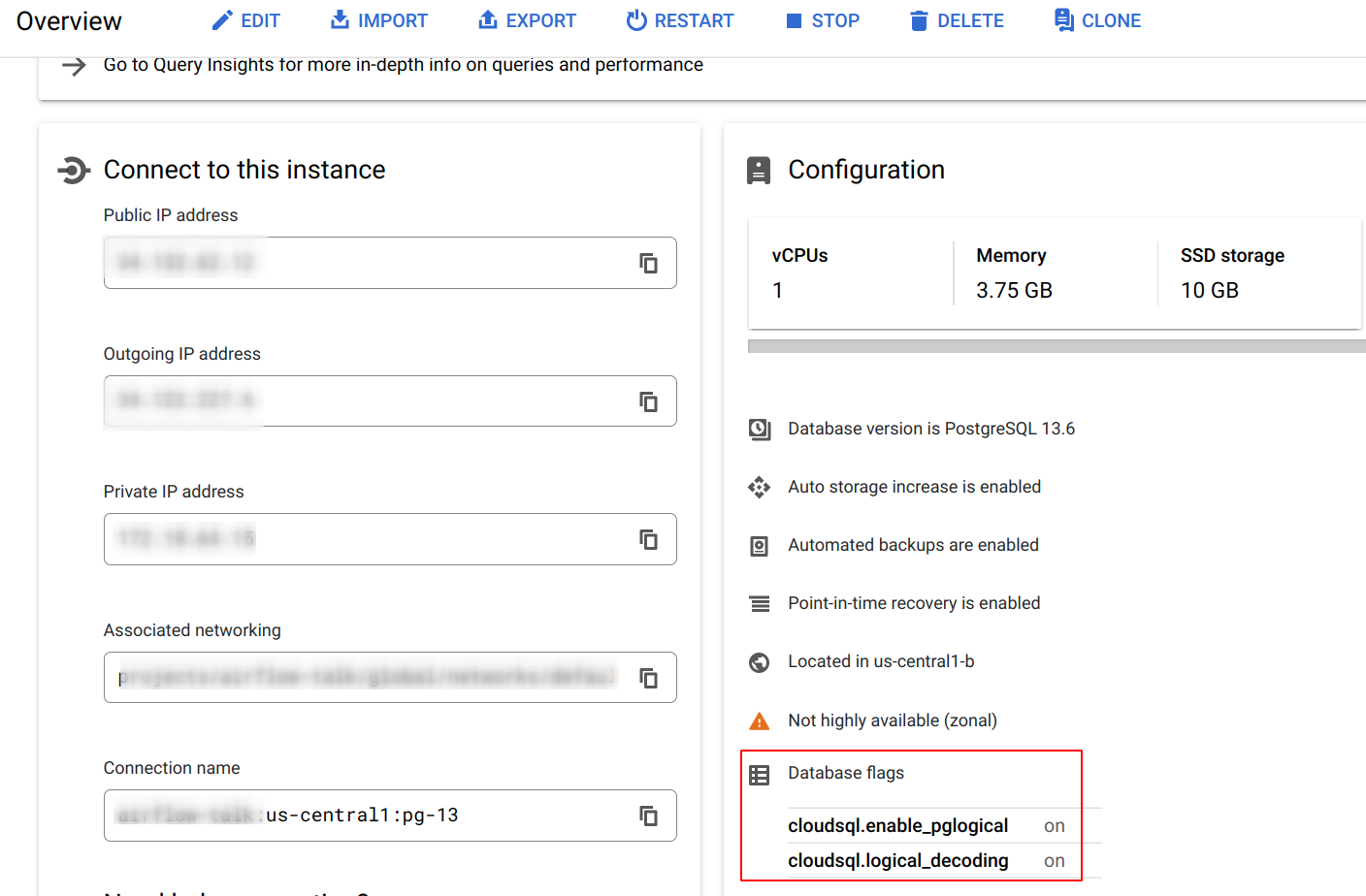
With the flags, pglogical will be enabled
When using Google DMS, the Source instance must include the postgres database. If you don't have this database, then create it. Luckily, Cloud SQL creates postgres database and its user.
Pop up some data
Connect to the database
gcloud sql connect pg-13 --user=postgres -d postgres --quiet
Run the below command
CREATE TABLE entries (guestName VARCHAR(255), content VARCHAR(255),
                        entryID SERIAL PRIMARY KEY);
INSERT INTO entries (guestName, content) values ('first guest', 'I got here!');
INSERT INTO entries (guestName, content) values ('second guest', 'Me too!');
Source databases configuration
Database Migration Service migrates all databases under the source instance other than the following databases:
- For Cloud SQL sources: template databases template0 and template1
Enable pglogical extension for all the databases
As I only have one database postgres, this step is easy.
Connect to the database
gcloud sql connect pg-13 --user=postgres -d postgres --quiet
Run then command
CREATE EXTENSION IF NOT EXISTS pglogical
Set privileges for the user
Set privileges on all schemas (aside from the information schema and schemas starting with "pg_") on each database to migrate, including pglogical.
GRANT USAGE on SCHEMA public to postgres;
GRANT USAGE on SCHEMA pglogical to postgres;
GRANT SELECT on ALL TABLES in SCHEMA pglogical to postgres;
GRANT SELECT on ALL TABLES in SCHEMA public to postgres;
GRANT SELECT on ALL SEQUENCES in SCHEMA public to postgres;
GRANT SELECT on ALL SEQUENCES in SCHEMA pglogical to postgres;
-- Don't forget to grant REPLICATION role to the postgres user that is used to run the job!
ALTER USER postgres with REPLICATION;
Create and run DMS job
Step 1: Choose the source database. In my case, it is Cloud SQL.
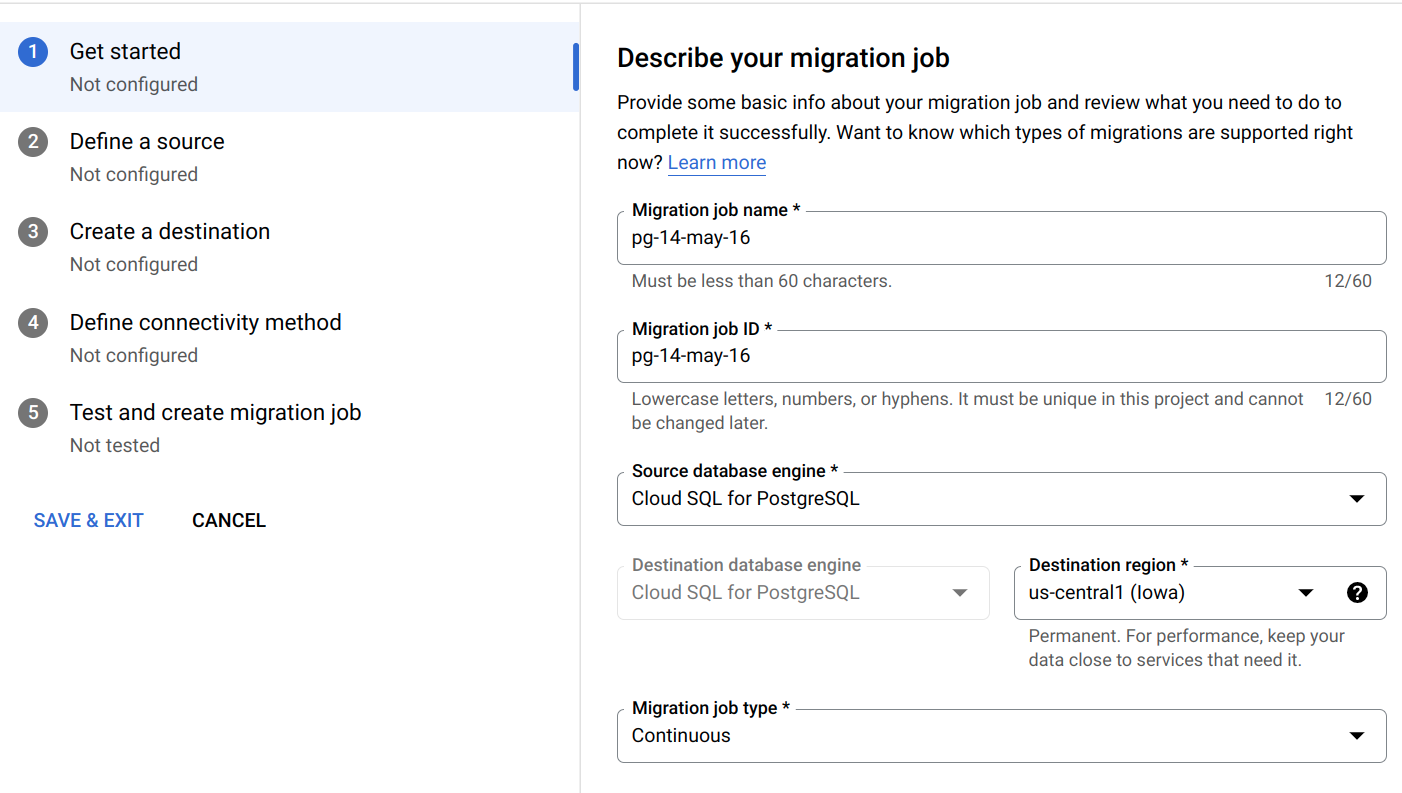
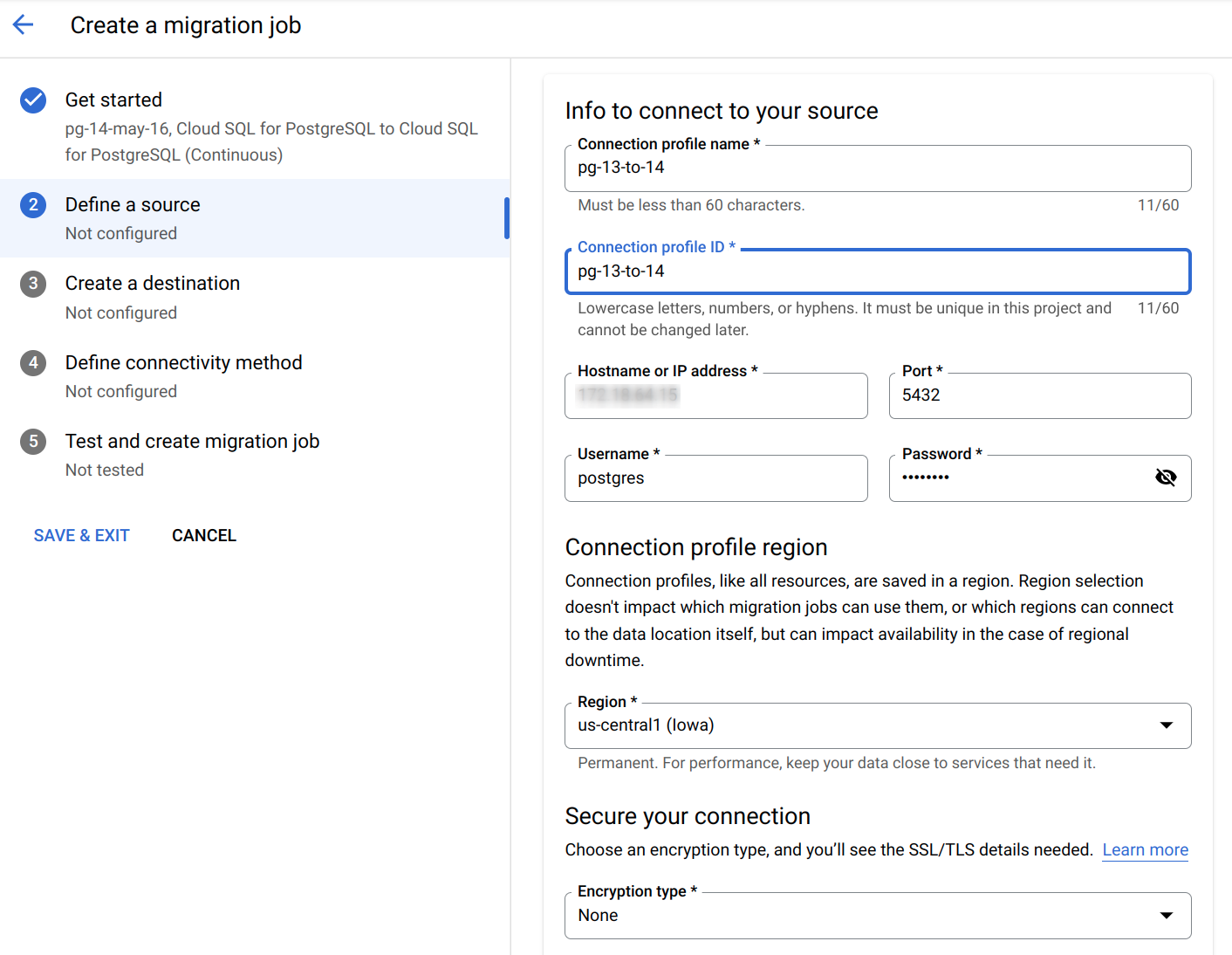
Step 2: Define the source database configuration. This will create a connection profile
Step 3: Create the destination Cloud SQL instance.
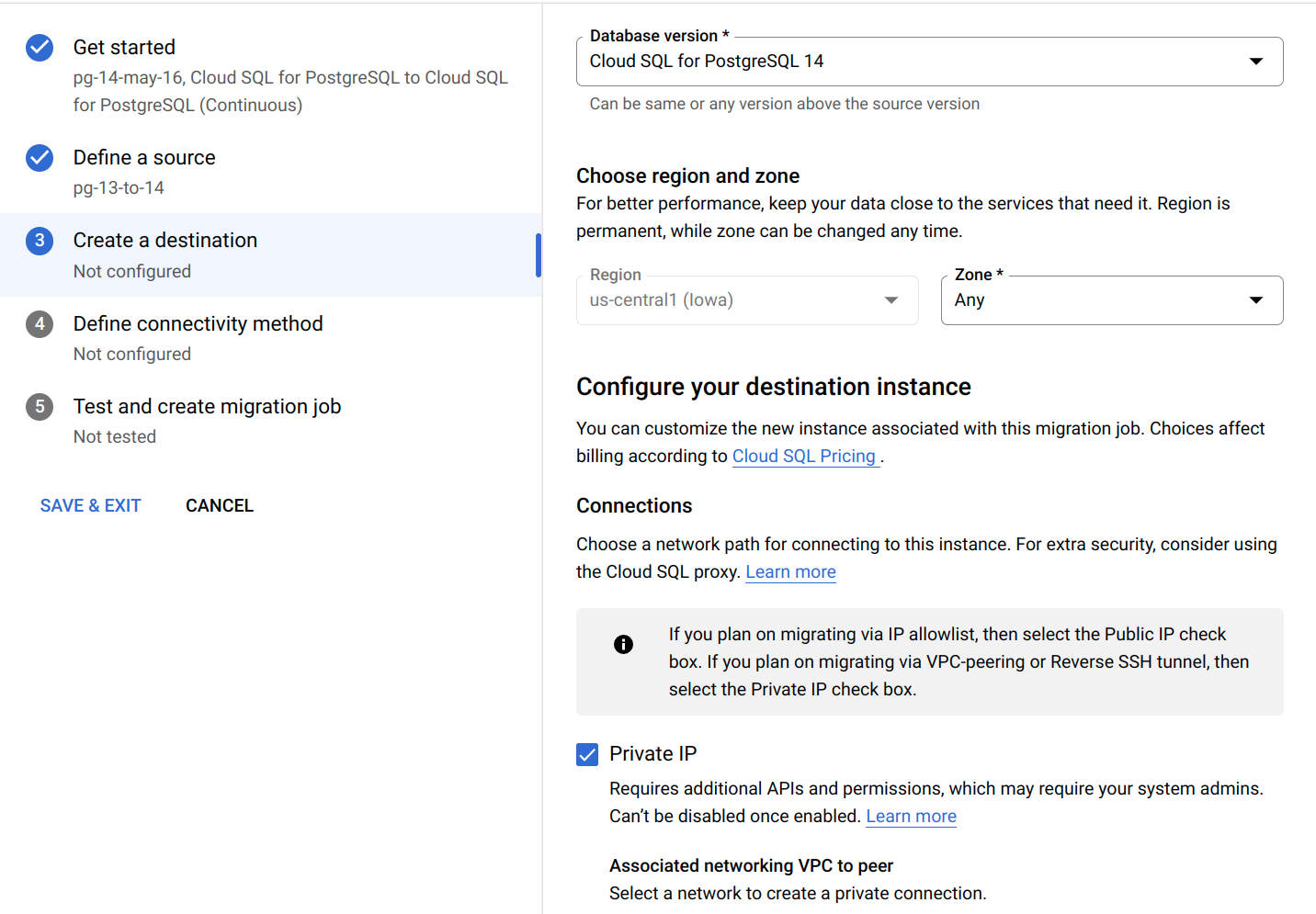
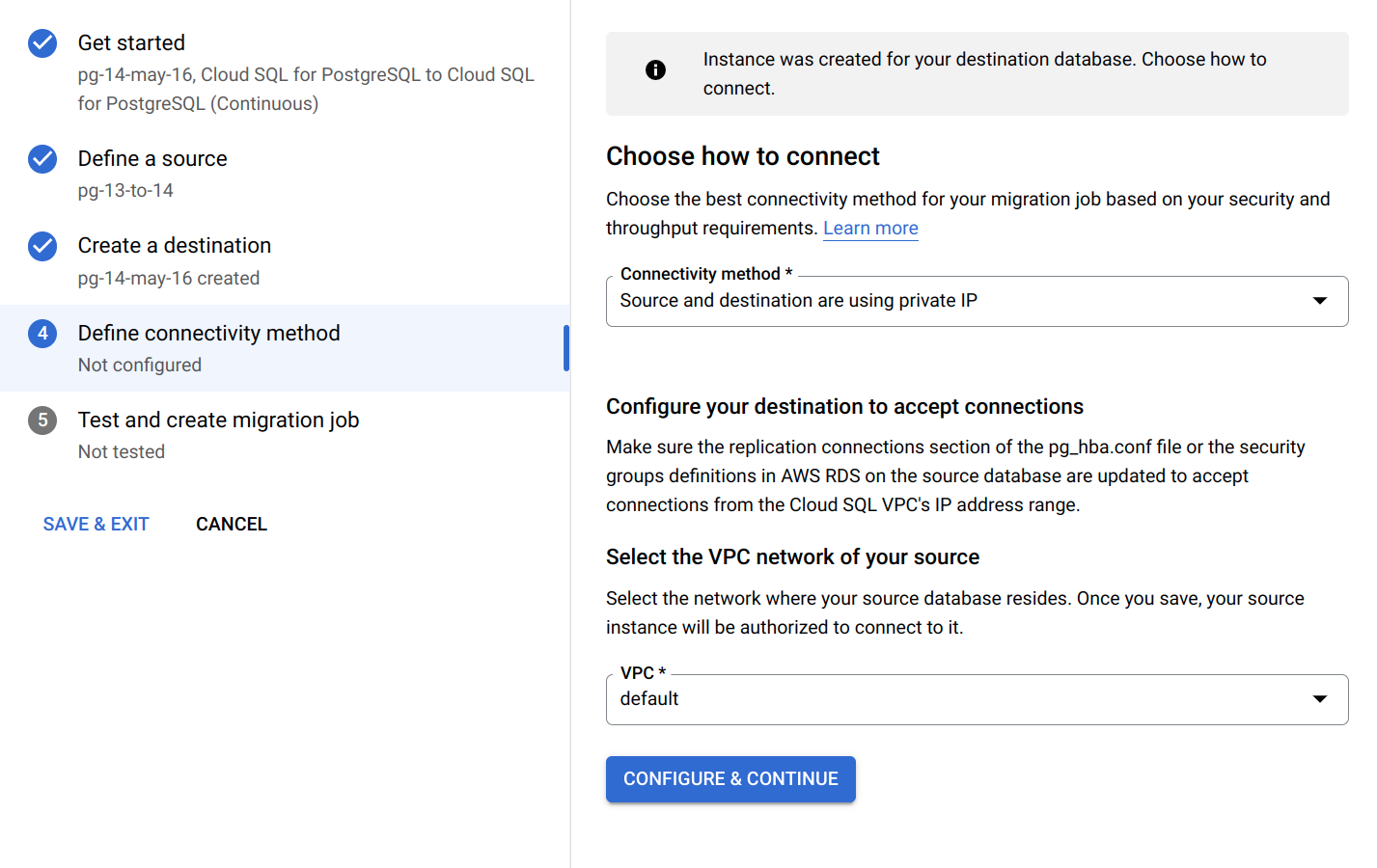
Step 4: Config the network connection. In my case, as both source and destination instances are Cloud SQL, I chose private IP which will just do the VPC peering.
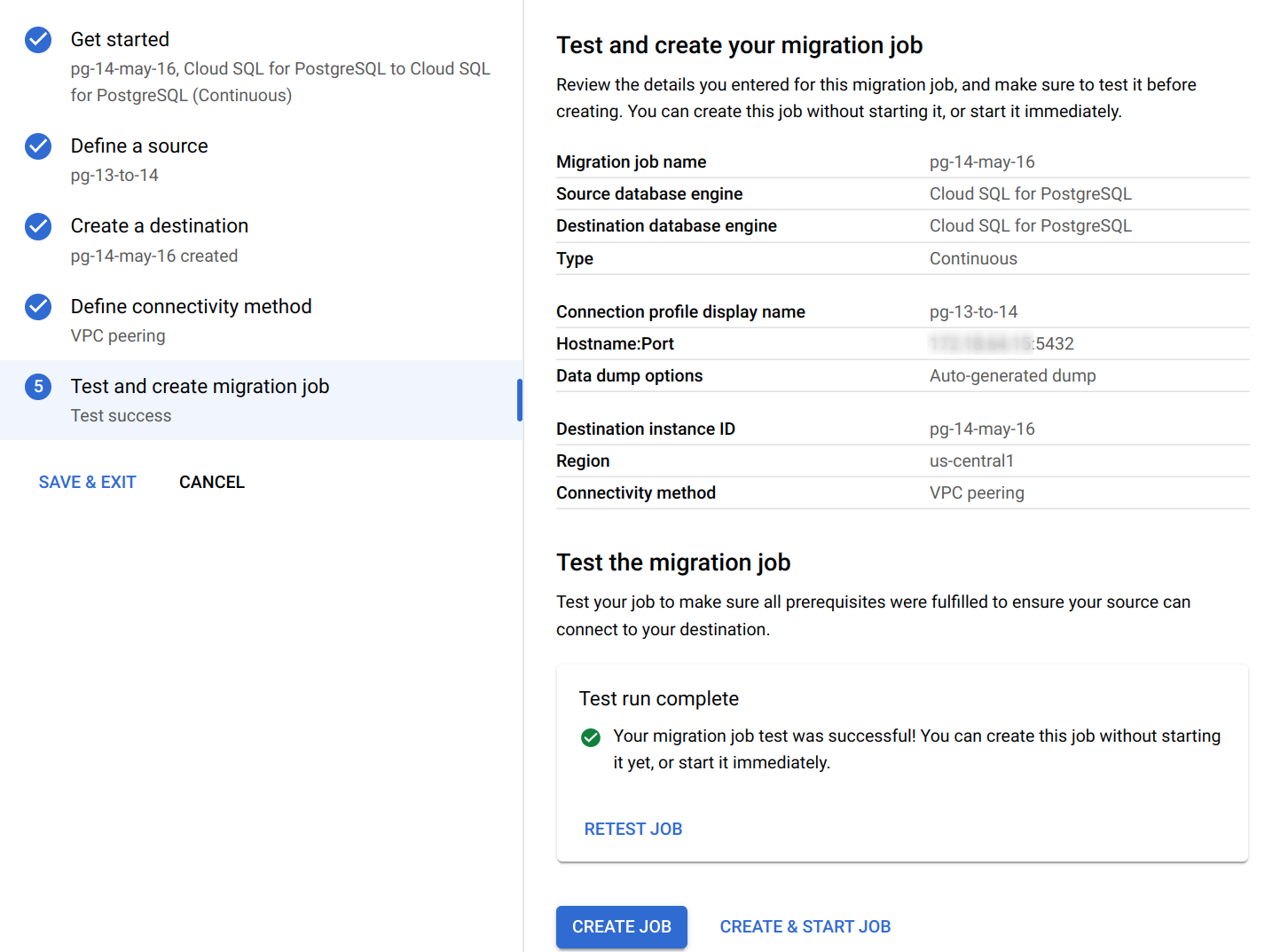
Step 5: Test and create the job.
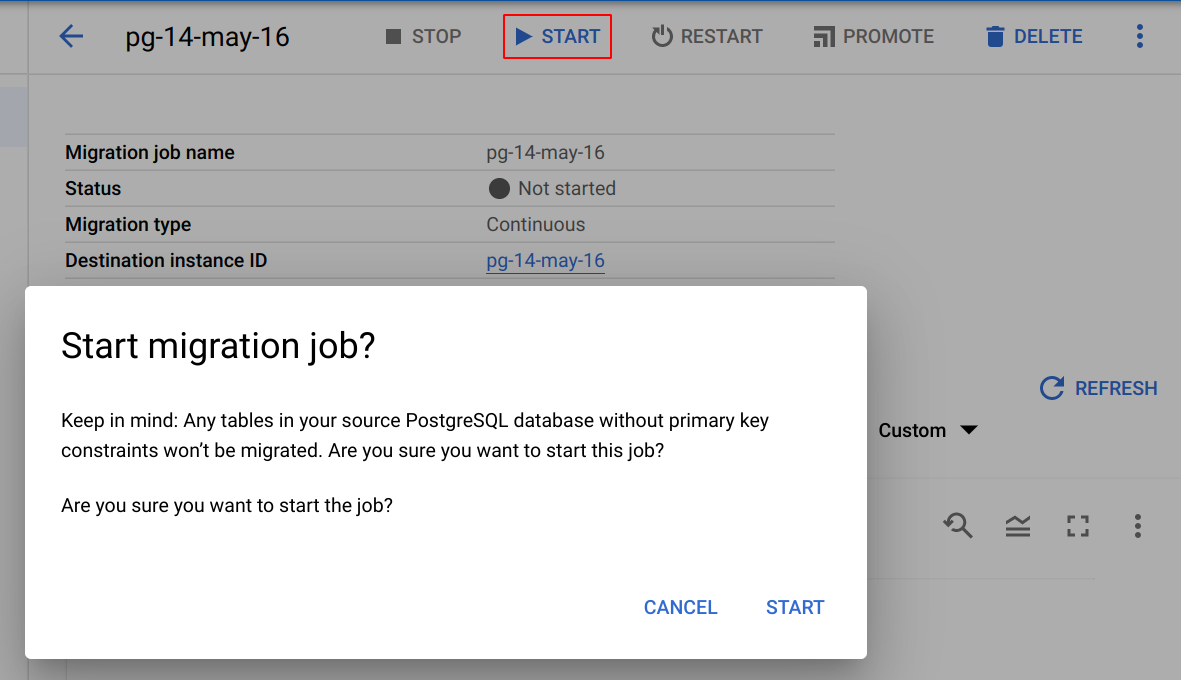
Step 6: Run the job!
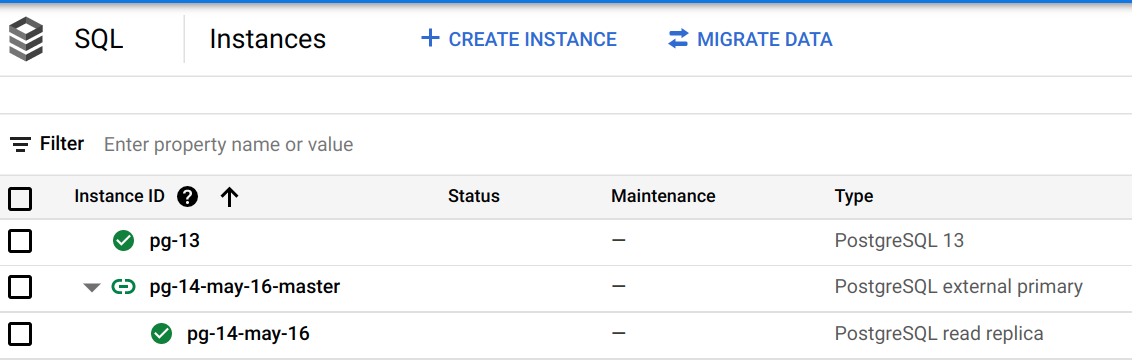
This is how it looks like after the job was created:
Verify the replication
Connect to the database
gcloud sql connect pg-13 --user=postgres -d postgres --quiet
Run the following statement
INSERT INTO entries (guestName, content) values ('third guest', 'test dms');
Connect to the new database
gcloud sql connect pg-14-may-16 --user=postgres -d postgres --quiet
Check if the data has been synced:
postgres=> SELECT * FROM entries;
  guestname   |   content   | entryid
--------------+-------------+---------
 first guest  | I got here! |       1
 second guest | Me too!     |       2
 third guest  | test dms    |       3
(3 rows)
Time to promote the new instance
Click the promote button
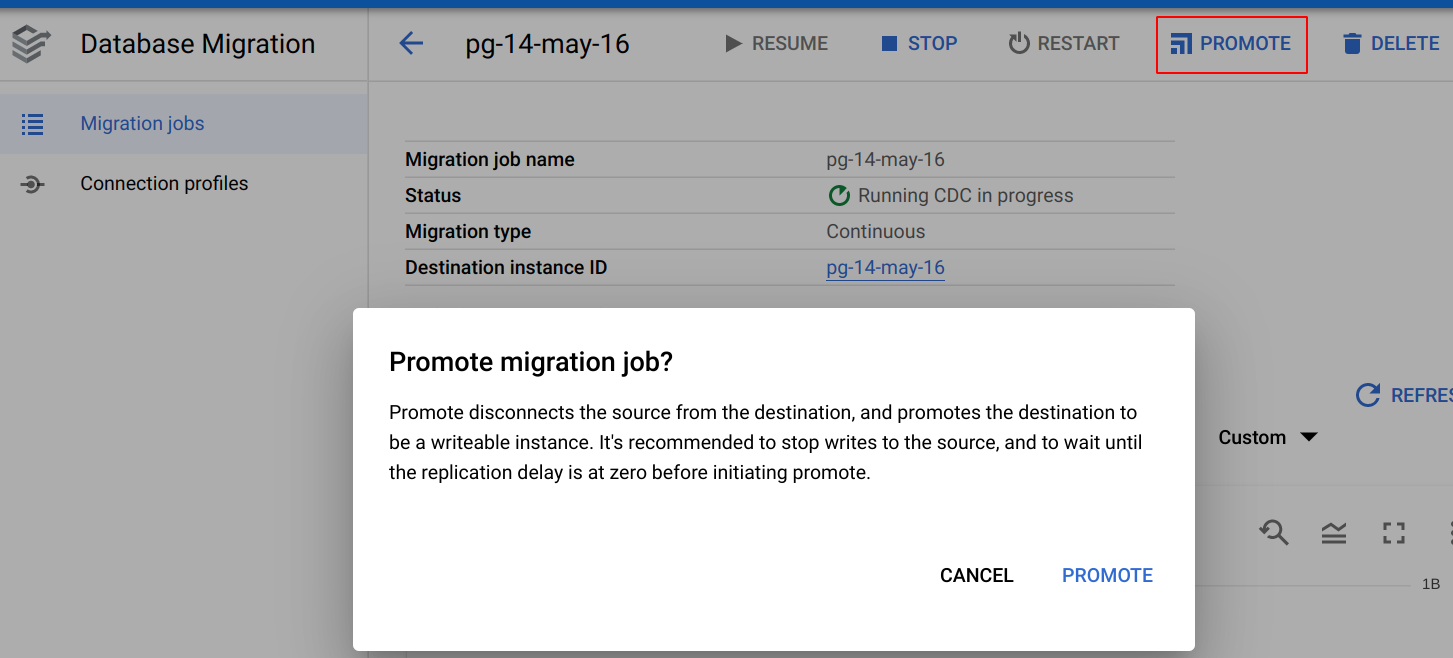
Now the new version of Cloud SQL Postgresql instance is promoted!
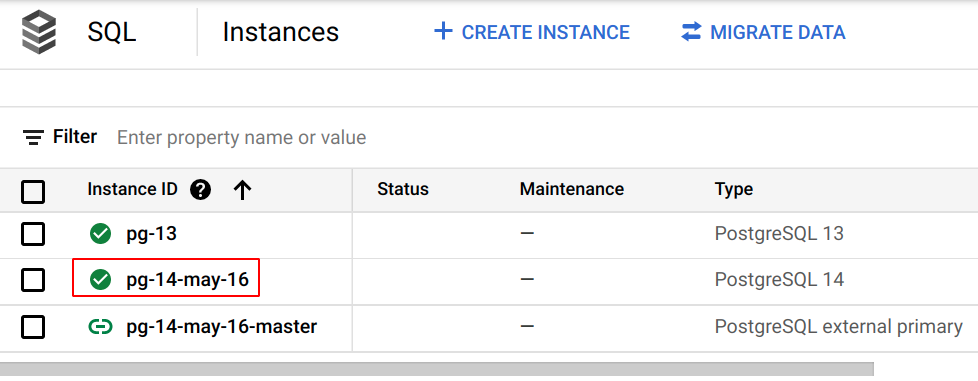
Conclusion
Google DMS can be used to replicate data from a lower version of Cloud SQL Postgresql to a newer one, then used to upgrade the Postgres version. Note that if you plan to do this, ensure that your applications stop the write operations on the old version Postgres instance, wait for the replication to be finished, then start the promotion of the new instance.
Comments
Join the discussionNo comments yet. Be the first to comment.